Score: 4.3 / 5. Files Editor is a PDF editor that runs in the browser. It covers editing, signing, conversion, page organization and basic document security without any software to install.
The feature list is broad: conversion between PDF, Word and Excel; merging and splitting; compression; rotating and cropping pages; adding or removing passwords; watermarks; and e-signatures. Most of these take one or two steps.
We tested it on everyday documents over an extended period rather than a quick trial run. The core tools worked as described. The main drawback is that tasks combining several tools, such as converting a file and then merging it with another, need more clicks than a dedicated single-purpose tool would. We also reviewed customer feedback about Files Editor on Software Advice.
Setup and interface
An account is optional. Uploading a file on the homepage opens it in the editor in guest mode. Creating an account took under a minute.
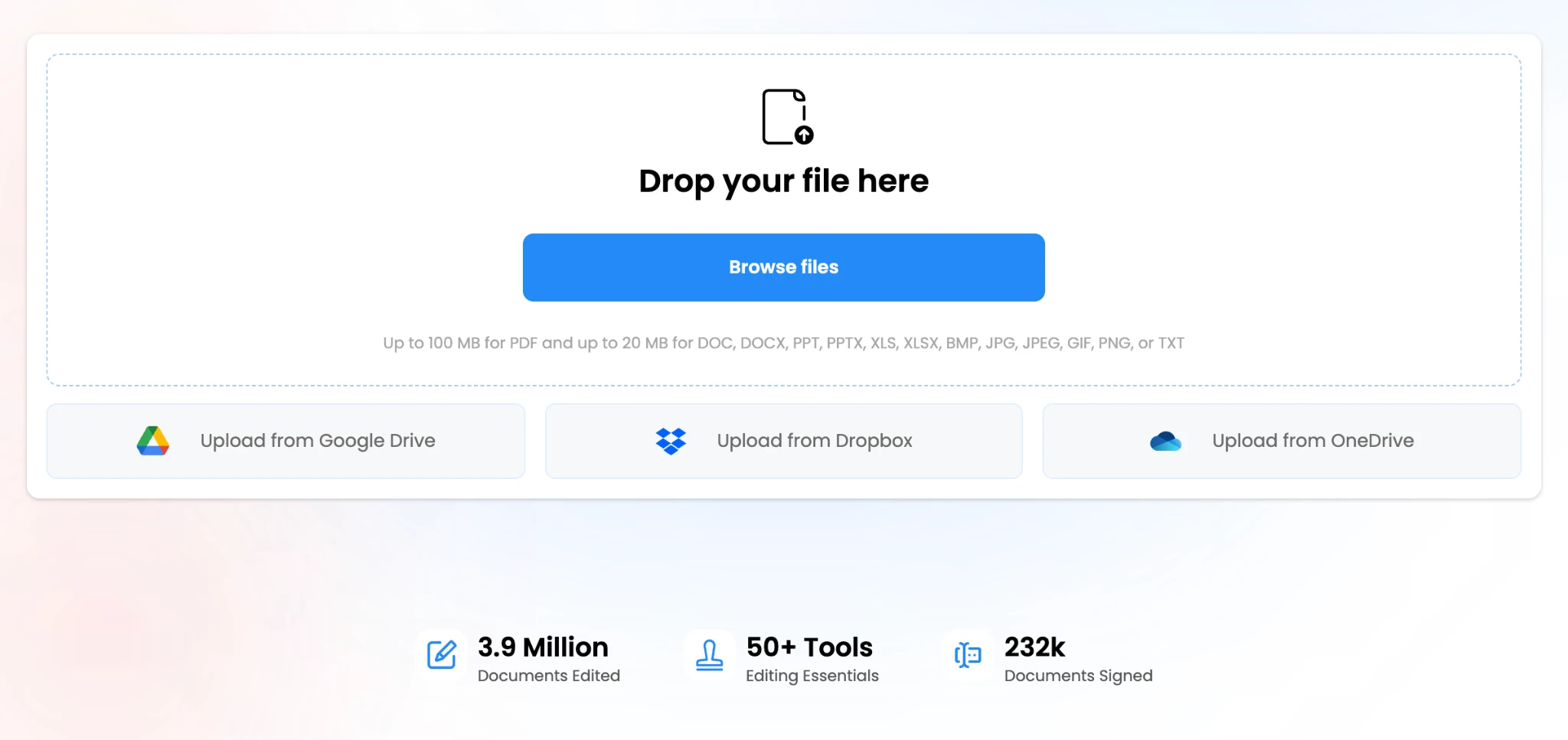
The upload limit is 100 MB for PDFs and somewhat lower for Word, Excel, PowerPoint and image files. Files can be opened directly from Google Drive, Dropbox and OneDrive, which avoids downloading and re-uploading them.
Tools are grouped into five categories: edit, sign, convert, organize and secure. In our use, finding a given tool took one or two clicks.
Editing and annotation
The editor can add, delete and move text on the page and change fonts and colours. It is not a layout or desktop publishing tool. It is suited to small changes such as fixing a typo, updating a date or filling in a blank field. In testing, text was placed accurately and font matching on existing text was close enough that edits were not obvious.
Annotation options include highlighting, sticky notes, freehand drawing, shapes and inserted images. This covers standard markup and review use.
Signing
Signatures can be drawn, typed in a chosen font, or uploaded as a photo. All three methods worked without errors in our tests.
Initials, date fields and checkboxes can be placed alongside the signature. This is useful for documents with several signature points, such as a multi-page agreement that requires initials on each page.
Conversion and page tools
Word, Excel, PowerPoint and image files convert to PDF and back with short wait times. Formatting was largely preserved in the documents we tested, including tables and embedded images. OCR is included, so scanned pages and photographed documents become searchable, selectable text.
Page tools cover merging, splitting, rotating, cropping and deleting pages, plus a repair function for files that fail to open in other applications.
Security and privacy
Security features include password protection, unlocking PDFs when the password is known, redaction and watermarking.
Redaction removes the underlying content rather than covering it with a black box. This matters because covered text can sometimes still be extracted from a file.
The service also uses encrypted storage and supports password-protected files, which is relevant for contracts, ID documents and financial records.
Limitations
- Multi-step workflows. Combining tools, for example converting a file and then merging it, takes extra navigation.
- Mobile use. The product is designed for desktop. All features are available on the mobile site, but tasks take noticeably longer there. Users who expect to work mainly from a phone should factor this in.
How it compares to using separate tools
Many users handle PDF tasks across several services. Files Editor combines most of these functions in one product. The table lists tools commonly used for each task.
| Task | Commonly used alternatives |
| Editing and annotation | Adobe Acrobat, Xodo, PDFescape |
| Format conversion | Smallpdf, iLovePDF, Zamzar |
| E-signatures | DocuSign, Dropbox Sign, PandaDoc |
| Merging, splitting, organizing | iLovePDF, PDF24, Sejda |
| Passwords, redaction, watermarks | Adobe Acrobat, Smallpdf |
| OCR | Adobe Acrobat, ABBYY FineReader |
The value of consolidation depends on how often these tasks come up. For users who currently switch between several services to finish a single document, it reduces that overhead.
Free trial
New users can start with a free trial. It is long enough to test the tools on real documents, which gives a better sense of fit than a demo.
Verdict: 4.3 / 5
Files Editor suits people who work with PDFs regularly but not enough to need a full desktop licence. Editing, signing and conversion performed as expected, the interface was easy to navigate, and the cloud storage integrations reduce file handling for users of Drive or Dropbox.
It is not a substitute for specialist software used in high-volume document production. For routine PDF tasks, it performed reliably in our testing.
Read more : How Technology Is Transforming Modern Journalism